
Download Thonny – free beginner‑friendly Python IDE
Thonny is a free‑to‑use integrated development environment (IDE) purpose‑built for people who are taking their first steps with the Python programming language. Developed by the University of Tartu, it combines a clean, minimalist interface with a suite of tools that make writing, debugging, and visualising Python code feel intuitive even for absolute beginners. Whether you are a high‑school student, a university newcomer, or a hobbyist looking for a low‑overhead environment, Thonny provides a safe sandbox where you can experiment with Python 3.7 (bundled) or any external interpreter you prefer. Its focus on education does not mean it sacrifices quality; the IDE ships with a built‑in debugger, variable explorer, and expression evaluator that together turn abstract concepts into concrete, visual feedback. While seasoned developers may eventually outgrow its simplicity, Thonny remains a solid launchpad that prepares learners for more feature‑rich environments such as PyCharm, VS Code, or Anaconda.
Key Features that Make Learning Python Seamless
- Built‑in Python 3.7 interpreter – start coding instantly without a separate installation.
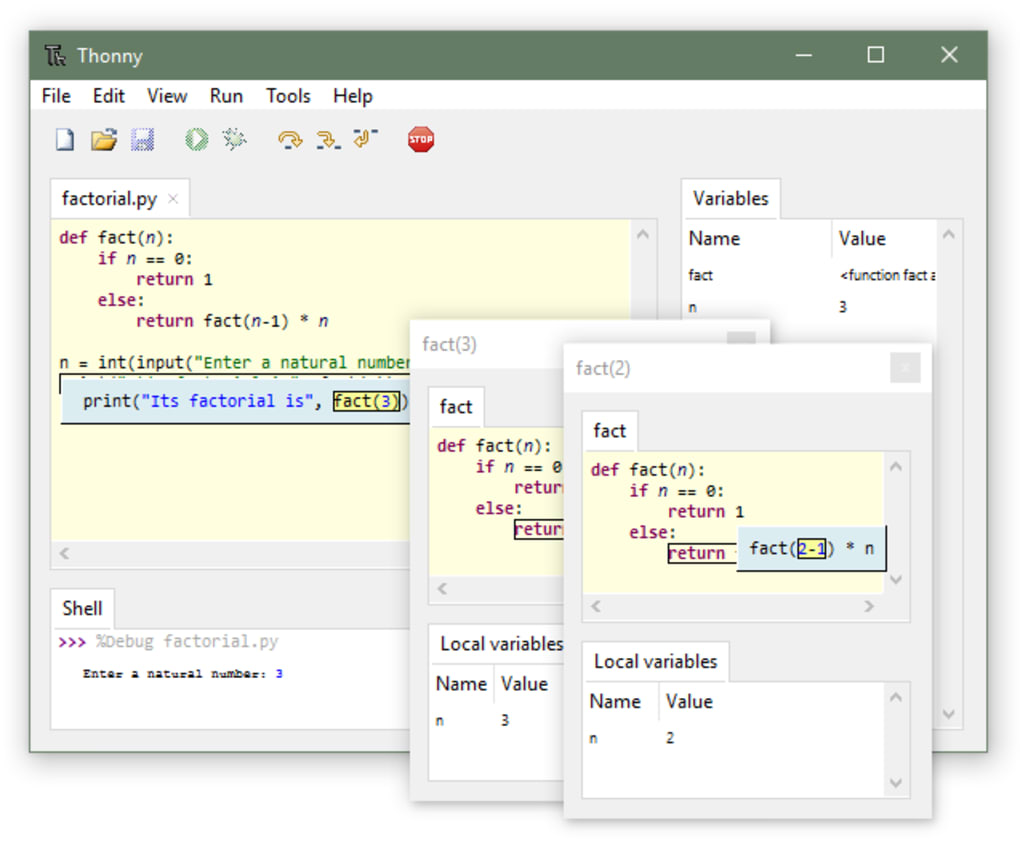
- Simple step‑by‑step debugger – use F6 and F7 to move through code line by line, with no need to set manual breakpoints.
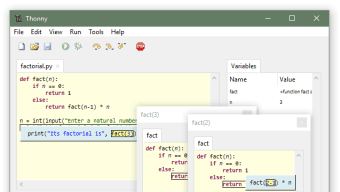
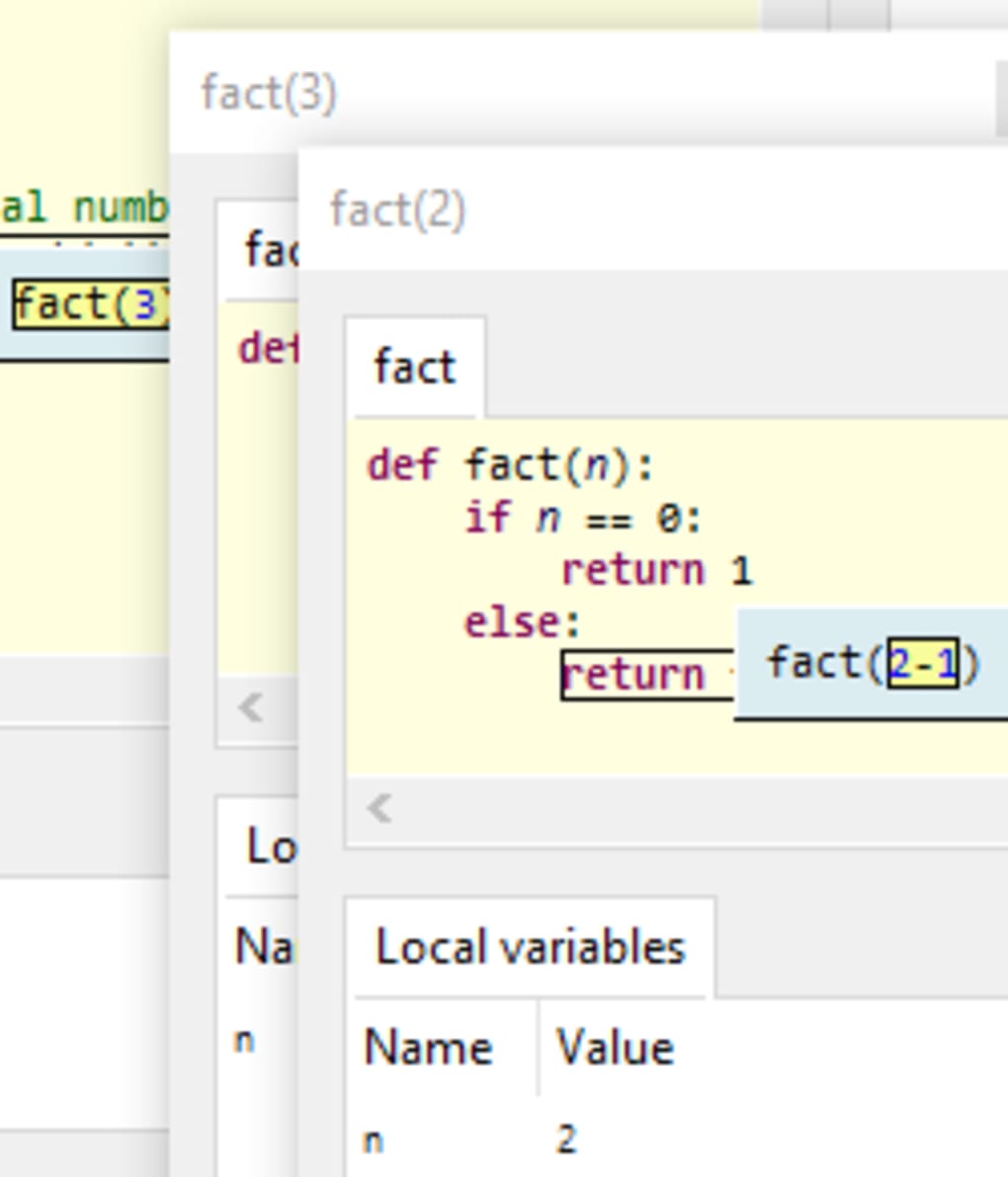
- Variable explorer – watch variables change in real time, helping you understand scope and data flow.
- Expression evaluation with visual output – evaluate snippets on the fly and see graphics or data structures rendered directly.
- Clear, stripped‑down UI – menus and panels are intentionally limited to avoid overwhelming newcomers.
- Support for external Python versions – switch to a newer interpreter when you’re ready for the latest language features.
- Cross‑platform availability – works on Windows, macOS, and Linux with consistent behaviour.
- Plugin system (experimental) – extend functionality with community‑maintained add‑ons once you outgrow the core set.
Each of these features is designed with pedagogy in mind. The bundled interpreter removes the “environment setup” barrier that often discourages new learners. The debugger’s single‑key navigation mirrors the way textbooks describe “step‑through” execution, reinforcing the mental model of how a program proceeds.
The variable explorer provides a visual cue that complements console output, making it easier to spot logical errors. Moreover, because Thonny isolates its UI from the underlying interpreter, you can safely experiment with risky code snippets without jeopardising your system Python installation. The combination of these tools creates a feedback loop: write code, run it, see immediate results, adjust, and repeat—exactly the cycle that accelerates mastery for beginners.
Installation & Usage Guide – Getting Started in Minutes
Installing Thonny is deliberately straightforward. On Windows, download the installer from the official website; it automatically detects your system architecture (32‑bit or 64‑bit) and installs the IDE along with the bundled Python 3.7 runtime. macOS users can grab the .dmg file, drag the Thonny icon into the Applications folder, and launch it directly. Linux distributions typically provide a package in their repositories (e.g., sudo apt install thonny on Debian‑based systems), though you can also use the universal AppImage for a distribution‑agnostic experience.
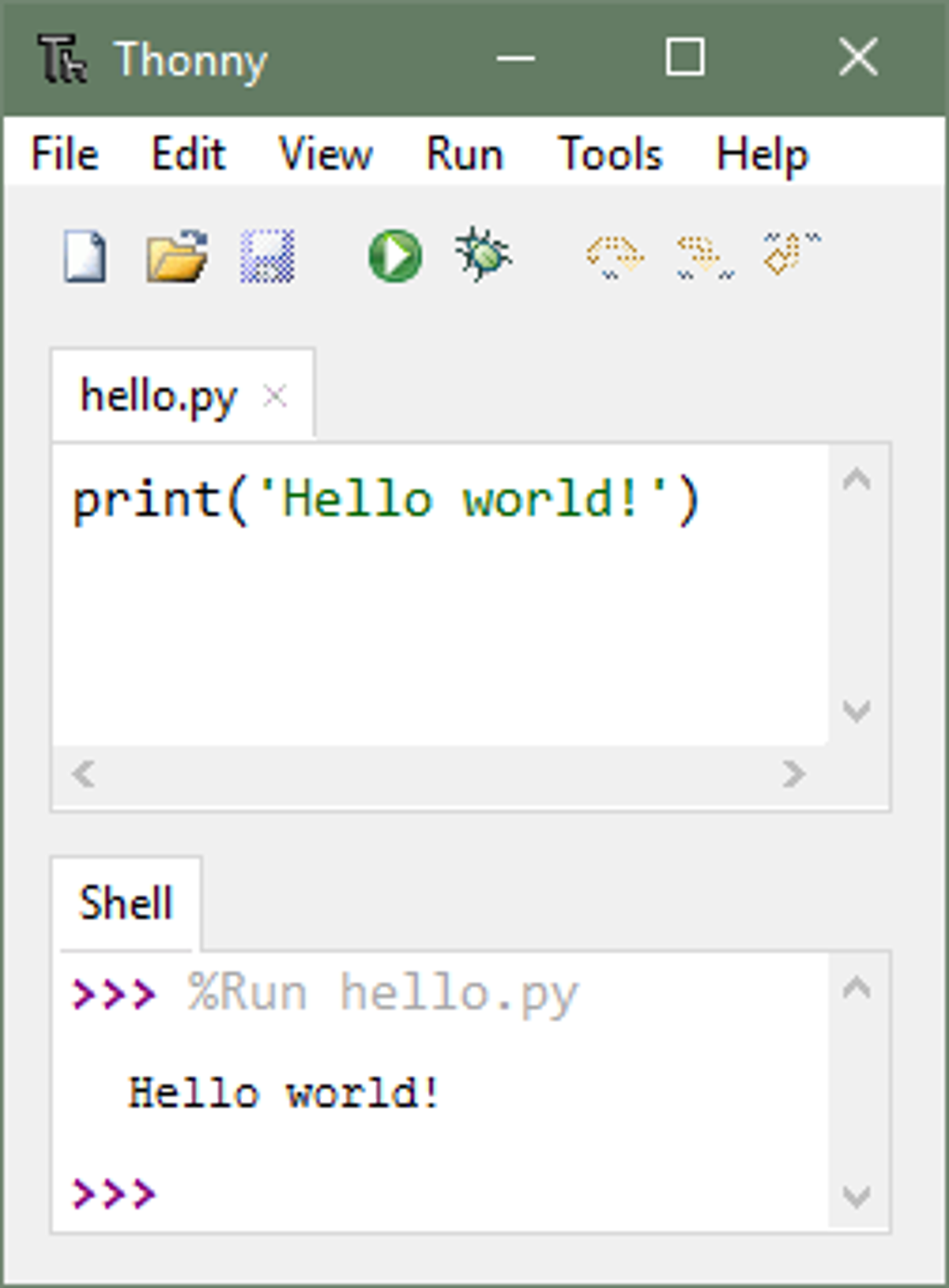
After the first launch, you’ll be greeted by a clean window with a single editor pane and a small console at the bottom. To write your first program, click File → New and type:
print("Hello, Thonny!")Press Ctrl + F5 (or click the green “Run” button) to execute. The output appears in the console, confirming that the bundled interpreter works out of the box. If you wish to switch to a different Python version—perhaps Python 3.10—you can navigate to Run → Select interpreter, browse to the desired executable, and restart the IDE. Thonny will remember this choice for future sessions.
The debugger can be invoked with Ctrl + F5 while placing the cursor on a line you want to start stepping from. Press F6 for a “big step” (run until the next line of your own code) or F7 for a “small step” (execute the current line and pause). As you step, the variable explorer updates in real time, showing you the current state of each variable.
For quick experiments, highlight any expression in the editor, right‑click, and select “Evaluate in shell”. The result, along with any graphical representation (e.g., a plot), is displayed instantly. This workflow eliminates the need for separate REPL windows and keeps the learning loop tight.
Compatibility, Pros & Cons, and a Quick Review
Thonny runs natively on Windows 10/11, macOS 10.13 or later, and major Linux distributions (Ubuntu, Fedora, Arch, etc.). The IDE is lightweight—typically under 100 MB of disk space—and requires only a modest amount of RAM, making it suitable for older machines or low‑spec laptops often used in schools.
Pros
- Zero‑configuration start: bundled Python means you can write code immediately.
- Intuitive debugger tailored for beginners, with visual variable tracking.
- Minimalist UI reduces distraction and keeps focus on core concepts.
- Cross‑platform consistency ensures a uniform learning experience.
- Free and open source, with regular updates from the development team.
Cons
- Lacks advanced refactoring tools and integrated version control found in professional IDEs.
- Plugin ecosystem is still emerging; power users may find limited extensions.
- Not optimized for large‑scale projects or complex dependency management.
- Debugger does not support conditional breakpoints or watch expressions beyond basic variables.
- Interface can feel overly simplistic once you progress beyond introductory tutorials.
Overall Rating: 4.5/5
The IDE shines as a teaching tool. Its strengths lie in the gentle onboarding experience and the visual feedback loop that demystifies Python’s execution model. While power users will outgrow Thonny, the platform’s stability and zero‑cost model make it a top recommendation for classrooms and self‑learners alike.
Frequently Asked Questions
Is Thonny completely free or are there hidden fees?
Thonny is 100 % free and open source. There are no subscription fees, no premium tiers, and no hidden charges. All features described in the official release are available to every user.
Can I use Thonny for professional Python development?
Thonny is optimized for learning and small scripts. For large‑scale applications, you’ll likely want a more feature‑rich IDE such as PyCharm Professional or VS Code, which provide advanced refactoring, debugging, and project management tools.
How do I switch to a newer Python interpreter?
Open the menu Run → Select interpreter, browse to the desired Python executable (e.g., python3.10), and confirm. Thonny will restart with the selected interpreter, while retaining your project files.
Does Thonny support package installation (pip) within the IDE?
Yes. Thonny includes a built‑in “Manage packages” dialog (found under Tools → Manage packages) that runs pip commands behind the scenes, letting you install, upgrade, or remove libraries without leaving the interface.
Is there a way to customize the theme or color scheme?
Thonny offers a handful of predefined themes (light, dark, and high‑contrast). You can switch them via Tools → Options → Theme**. Advanced users can edit the underlying CSS files to create custom colour palettes.
Conclusion – Start Your Python Journey with Thonny Today
If you are looking for a secure, free, and beginner‑friendly way to dive into Python programming, Thonny checks every box. Its bundled interpreter removes setup friction, while the visual debugger and variable explorer turn abstract concepts into tangible experiences. Although power users will eventually migrate to more heavyweight IDEs, Thonny provides a solid foundation that prepares you for that transition. Download Thonny now, launch the first “Hello, World!” script, and discover how enjoyable learning to code can be.
Download Thonny and begin building Python projects today – no cost, no hassle, just pure learning.







